Connect your LinkedIn account
First thing to do: link your LinkedIn so Lead Gravity can work for you.
Before anything else, Lead Gravity needs access to your LinkedIn account to read your posts, detect comments, and send messages on your behalf.
Don't worry — we never store your password. The connection goes through a secure partner (Unipile) that handles OAuth authentication.
Go to Settings
From your dashboard, open the Settings menu in the left sidebar, then select the LinkedIn Account tab.
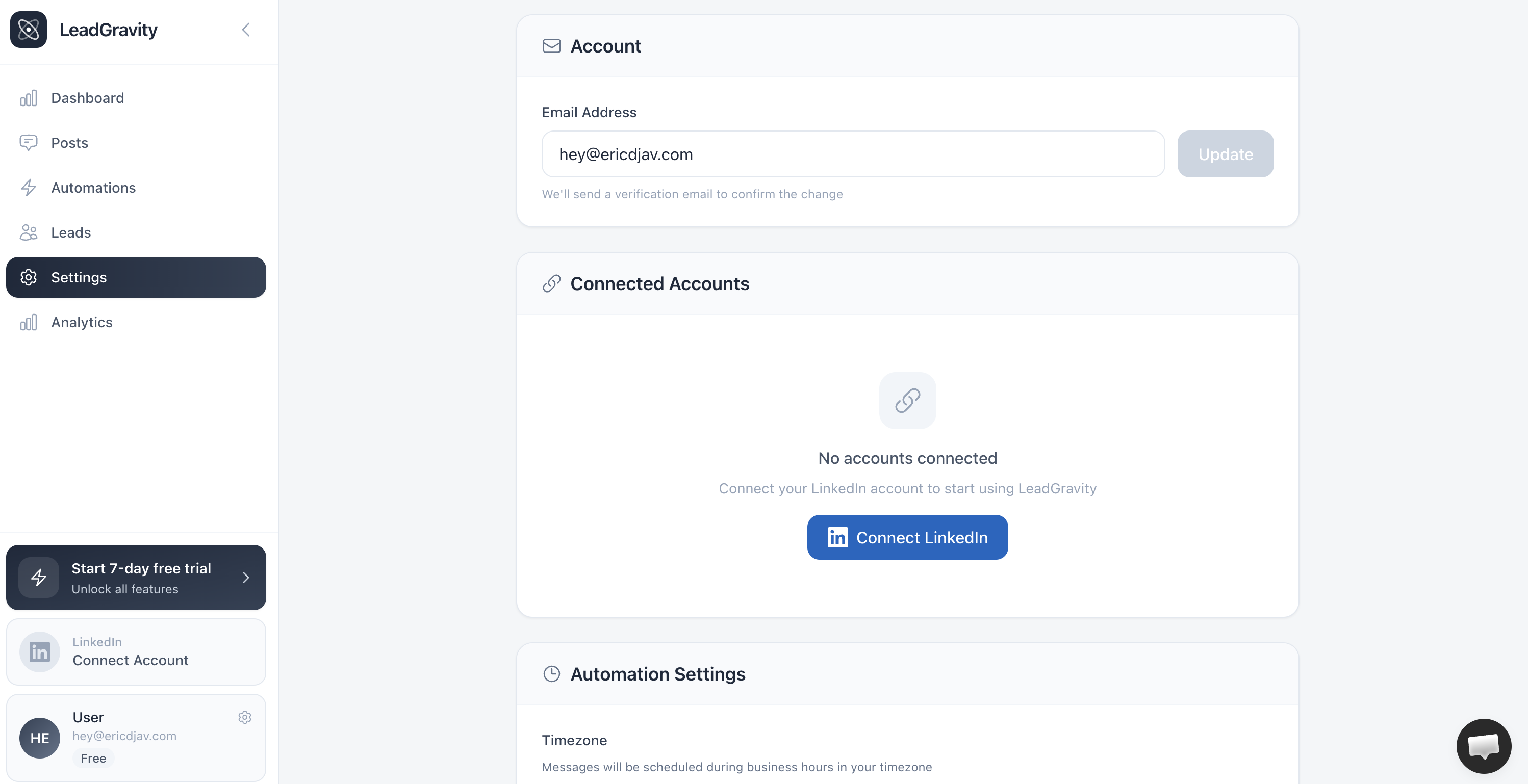
Start the connection
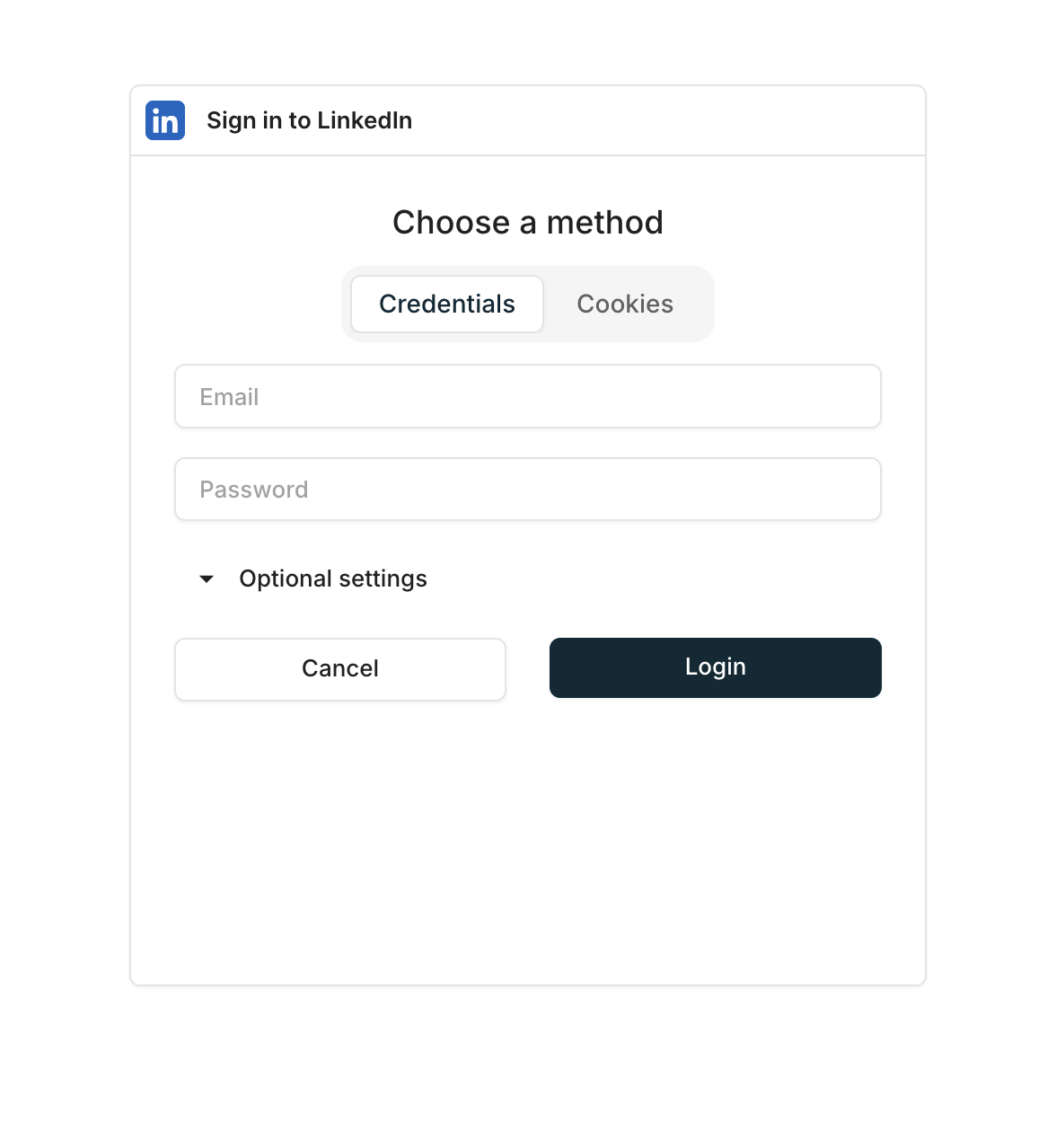
Click the "Connect LinkedIn" button. A pop-up window opens with Unipile's authentication page.
Enter your regular LinkedIn credentials. If you have two-factor authentication enabled, you'll receive a code — that's normal, it's part of the process.
Automatic sync
Once connected, Lead Gravity automatically starts syncing your last 50 LinkedIn posts. This typically takes 1-2 minutes.
Once the sync is complete, you'll see your posts appear on the Posts page in the dashboard.
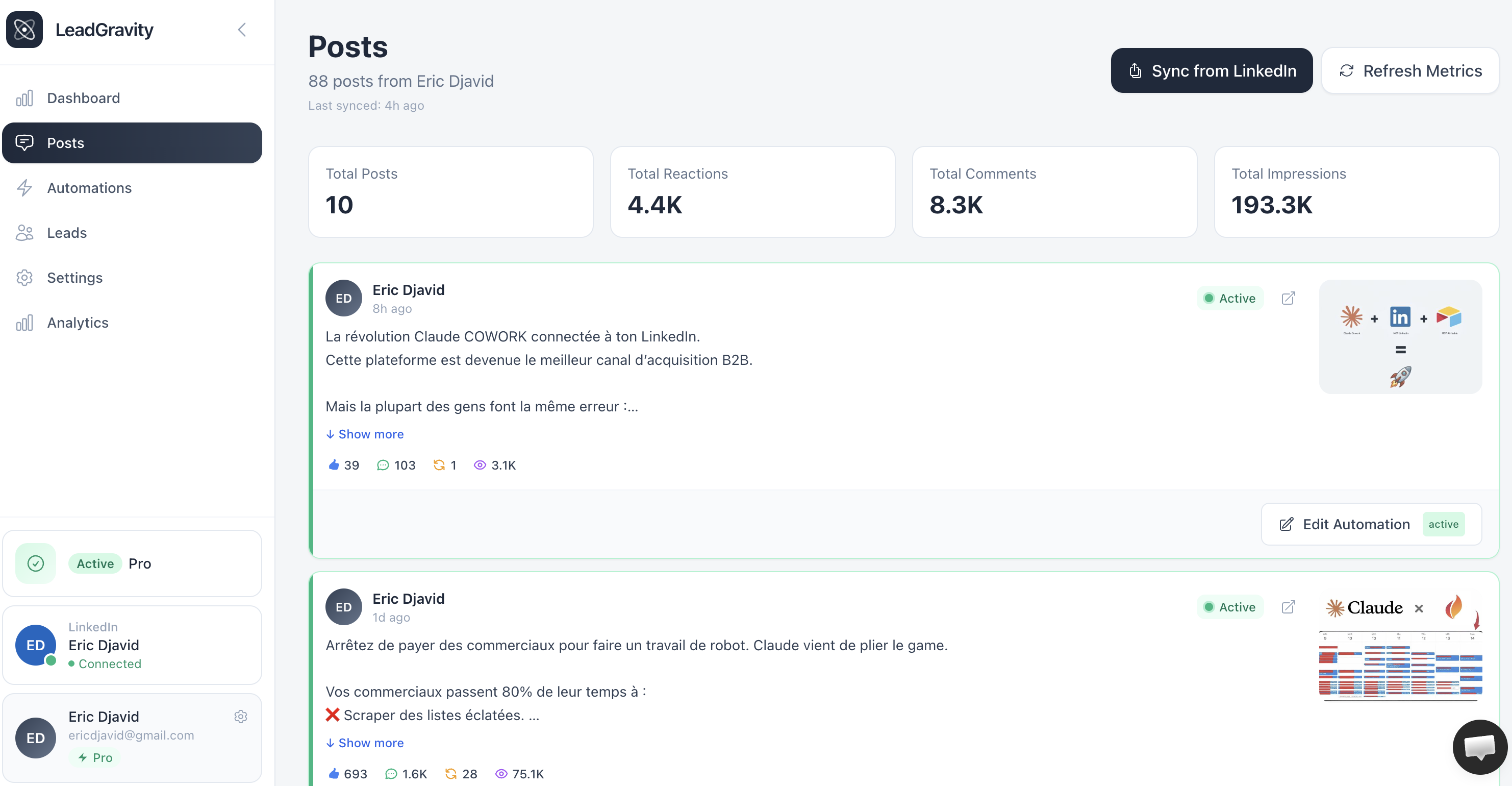
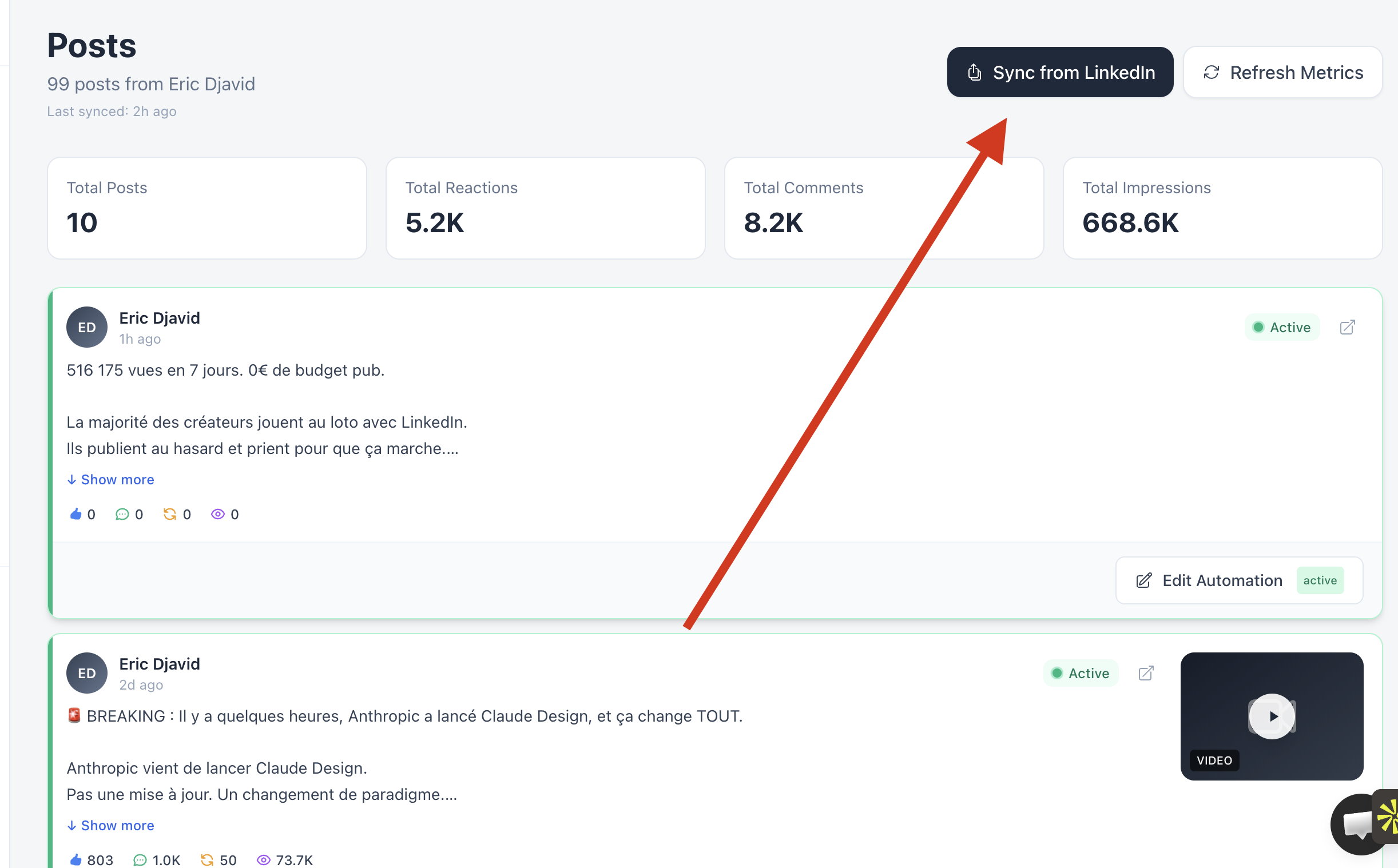
If your posts don't show up, click the "Sync from LinkedIn" button at the top of the Posts page to manually trigger a resync.
Good to know
Your account stays connected until you manually disconnect it. Lead Gravity never modifies your profile, posts, or LinkedIn settings — we only read and send messages.