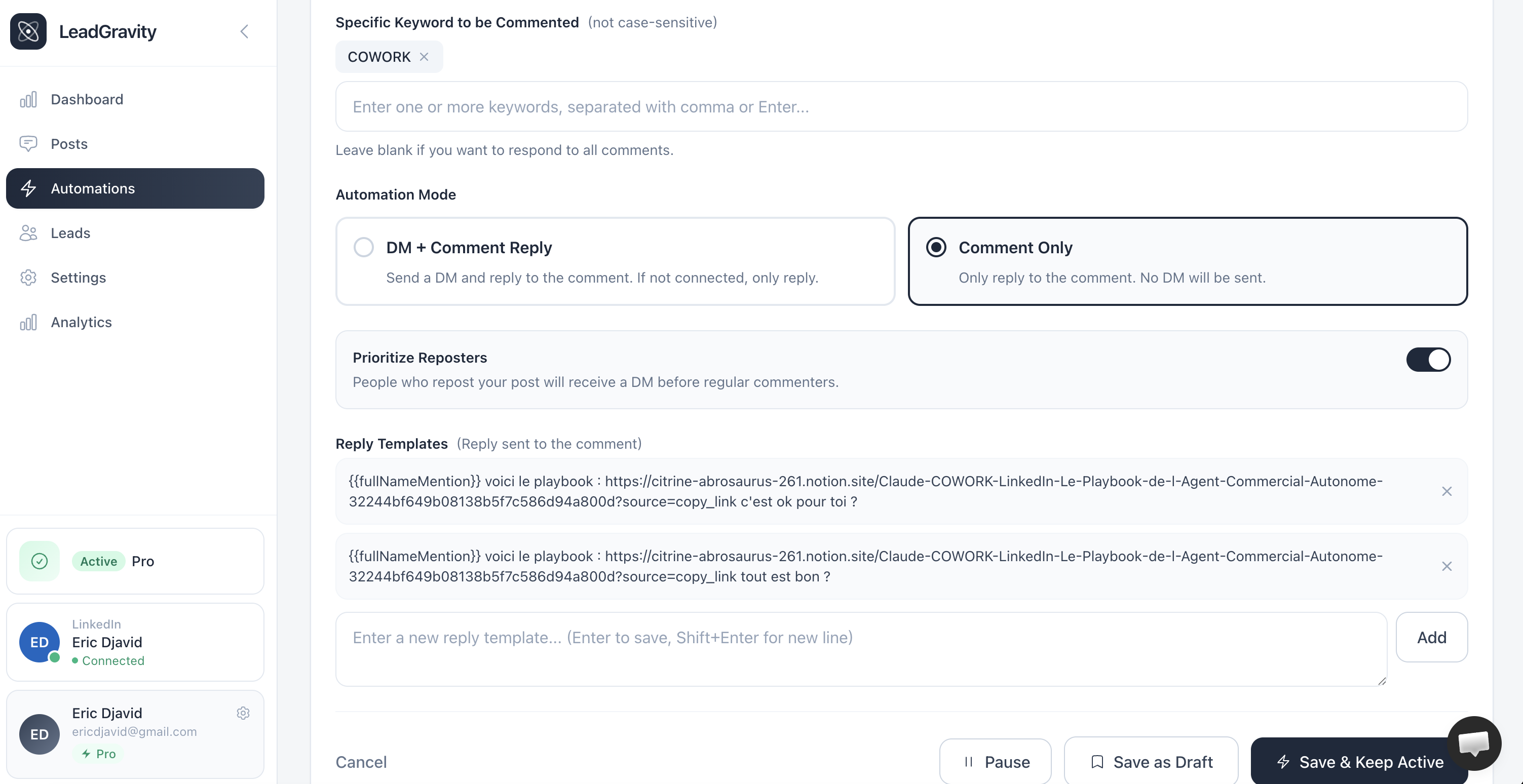
Configure trigger keywords
The keyword is your filter: only comments containing it trigger the automation.
In your LinkedIn posts, you ask people to comment a specific word to receive your resource. That word is the trigger keyword.
When someone comments it, Lead Gravity detects it and automatically sends your message.
The detection mechanism
Every 10 minutes, Lead Gravity scans new comments on your active posts. For each comment, it checks if the text contains one of your keywords.
If yes → the prospect is queued and will receive your DM and/or comment reply.
How to choose a good keyword
One word, not a phrase
"GUIDE" rather than "send me the guide"
7 letters max
People comment from their phones — shorter is better
Uppercase in your post
"Comment GUIDE to receive..." — it catches the eye
Related to your content
"AUDIT" for an audit tool, "PROMPT" for AI prompts, etc.
Multiple keywords
You can add as many keywords as you want on a single automation. If someone comments "GUIDE" or "LINK", both work.
Handy if your post mentions the keyword in two different ways, or if you want to catch variations.
Case and detection
By default, detection ignores case. "guide", "Guide", and "GUIDE" all trigger the automation. You can force case sensitivity in the advanced settings.
What happens when I change keywords?
If you change the keywords of an already active automation, Lead Gravity automatically re-scans all existing comments to find those matching the new keywords.
People already processed won't receive duplicates — only new matches are added.
Effective keyword examples