Import your leads from a CSV
Already have a list of leads (Sales Nav, Apollo, custom file)? Import it in one click and send a personalized message to each.
No more waiting for prospects to comment on your posts before they show up in Lead Gravity. If you already have a list of leads (Sales Navigator, Apollo, Phantombuster, or your own file), import it as a CSV and skip straight to DM sending.
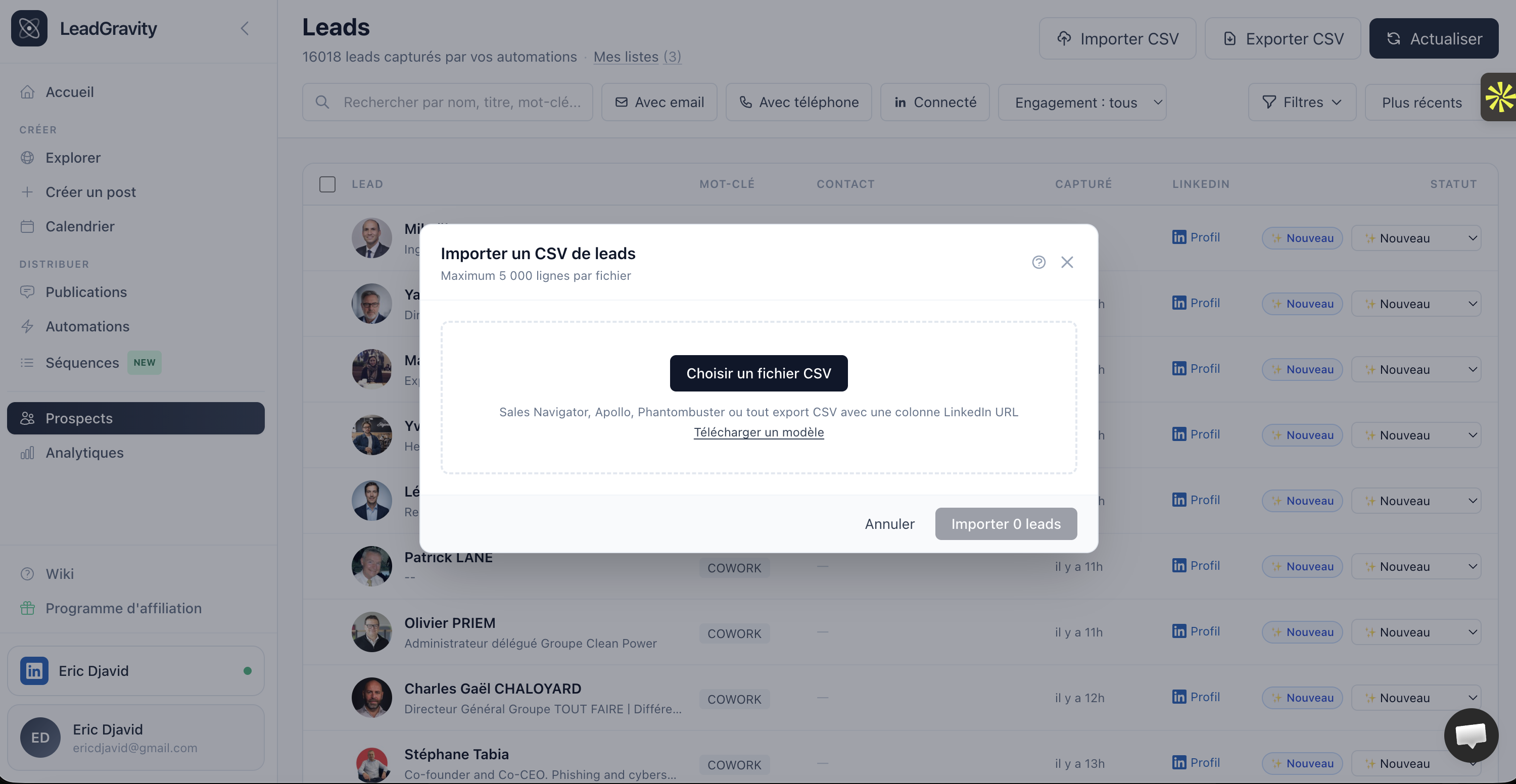
Run an import
On the Leads page, click the "Import CSV" button in the top-right corner, next to "Export CSV".
Drop your file into the modal (or click to select). Lead Gravity parses it instantly in your browser, without sending anything until you confirm the mapping.
No file ready? Click "Download a template" below the file picker to grab a sample CSV with the right columns.
Expected format
One column is required: the lead's LinkedIn URL. Everything else is optional but helpful.
linkedin_url *
Profile URL or slug. Accepted: https://linkedin.com/in/john-doe, /in/john-doe, or just john-doe.
full_name
Full name. Used to enrich the lead profile if we didn't have it.
headline
LinkedIn headline / job title. Same: enriches the profile.
custom_first_message
Pre-written message per lead. See dedicated section below.
Headers are auto-detected: "LinkedIn URL", "Profile URL", "Full Name", "Headline", "message", "dm_message", etc. If detection misses, adjust the mapping manually in the modal.
No duplicates, ever
Lead Gravity reconciles every CSV row against your existing leads before inserting anything. If a lead was already captured via an automation, it is automatically recognized and enriched, not duplicated.
Reconciliation runs on the LinkedIn slug (the part after /in/), then on the normalized URL if the slug isn't found.
The end-of-import toast gives you the breakdown: how many added, how many matched against existing leads, how many duplicates skipped.
Pick the target list
Before running the import, pick the list these leads will land in:
- New list: type a name, it gets created on the fly
- Existing list: pick it from the dropdown
All imported leads are automatically added to the chosen list. Combined with a sequence triggered by "Lead added to list", you get the perfect combo: import → list → automatic enrollment.
The per-lead custom message
This is the superpower of CSV import. If your file has a custom_first_message column (or message, dm_message, template, first_dm, all auto-detected), Lead Gravity will use that text as the first DM instead of your sequence template.
Typical use case: you've generated 200 personalized messages via Apollo, GPT, or written manually. Instead of sending them all by hand, import them into Lead Gravity and each lead receives their exact message, paced through a safe sequence (spacing, business hours, LinkedIn quotas respected).
Important
- The custom message replaces only the first DM of the sequence. Follow-ups (2nd, 3rd DM) use your sequence templates as usual.
- Limit: 3,000 characters per message (longer messages are auto-truncated).
- No variables like
{{firstName}}: the message is delivered as-is. You personalize at CSV generation time, not at send time.
See pending messages
Until a lead receives their first DM, their custom message is visible from the prospect's detail panel. Click on a lead in the Leads page: an amber "Message scheduled to be sent" block appears above the status, with the full text.
Once the DM is sent, the block automatically disappears (one-shot).
In the sequence editor: when editing the "Send a DM" node that will be the first of the sequence, a badge reminds you how many leads have a custom message ready to go.
Limits and best practices
- 5,000 rows max per file. Beyond that, split into multiple imports.
- LinkedIn quotas always apply: if you import 5,000 leads with a daily DM quota of 50, sending will take about 100 days. That's intentional, it protects your account.
- Avoid re-importing the same CSV in a loop: every re-import re-checks everything (not dangerous, just useless).
- If a
custom_first_messagecell is empty, the sequence template is used for that lead. Mixing is fine within the same import.
Pro tip
For ultra-personalized cold outreach: export your Sales Nav list with URL + Headline + Company columns, run it through GPT to generate one custom message per row (referencing their role/company), then import the resulting CSV into Lead Gravity. You launch 200 personalized messages in 3 minutes instead of 2 days.